How to use EM-Departures
Live buses, trams and trains on your Garmin watch. This guide covers every screen, every setting and what happens in the background. It is written for app version 0.0.10.
Getting started
Install and open
Install Departures from the Connect IQ store. Open it from the widget list or the glance loop. It needs your phone connected through the Garmin Connect app for live data.
Let it find you
It uses the watch's GPS by default and shows every route within about 800 m. You can use your weather location or a fixed postcode instead (see Settings).
Look, then go
The first card is the bus to catch. Press Start for the route detail and the time to set off. There are no accounts and nothing to sign up for.
Screens and controls
Controls
- Up / Down (or swipe): scroll the Next buses list, then page through the boards of the stops around you, then back to Next buses.
- Start (or tap a card): open the route detail for that bus.
- Hold Up, or press Menu: open the menu.
- Back: step back out. From a route detail it returns to Next buses.
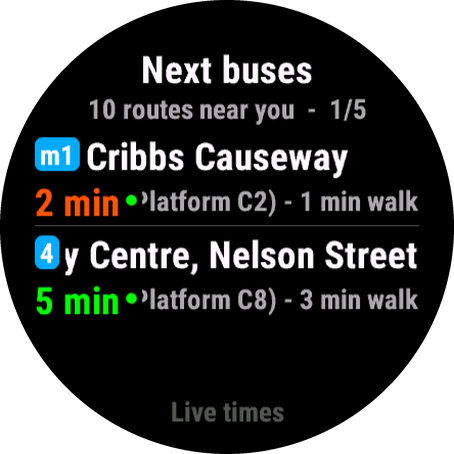
Next buses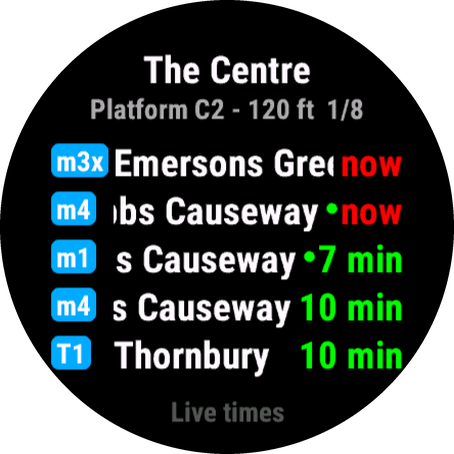 A stop board
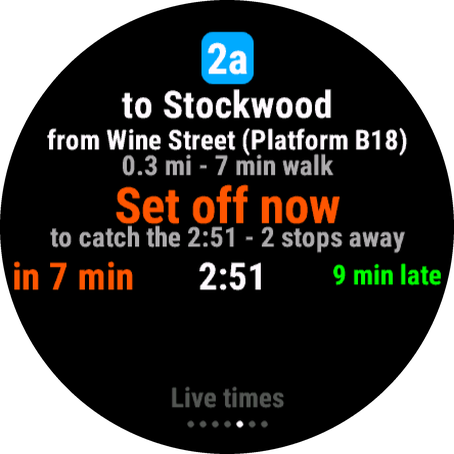 Route detail
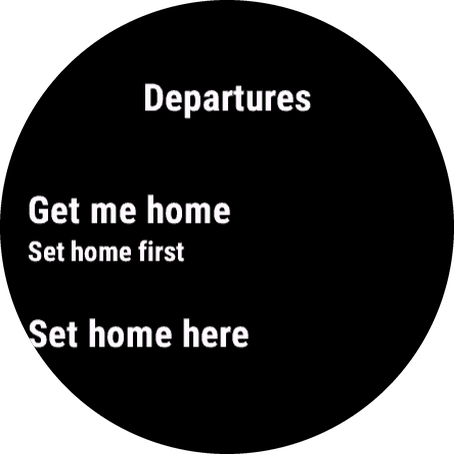 The menu
Next buses
The default page. One card for every route and direction within about 800 m, soonest first. Each card shows the nearest stop for that route, how far it is to walk and when the bus is due. The footer says Live times or Timetable times.
Long destination names scroll. Times read "now", then minutes, then a clock time beyond an hour.
Stop boards
Keep pressing Down past the last card and you step into the boards of the stops around you. A board is one exact stop or platform, with both directions together where there is a pair. The title is the stop name (a star means it is one of your favourites) and the second line gives the platform or bracketed part of the name, the distance and where you are in the pages (such as 1/8). Each row is a route badge, the destination and the due time. Press Start to open the route detail for the next bus.
Route detail
This is where you decide when to leave. It shows the route, where it is going and the stop it leaves from (with the stop number when it is the one printed on the stop), the distance and your walking time. Then:
- Set off in 2 min, or Set off now: when to start walking. The colour shows how urgent it is.
- to catch the 17:04 - 3 stops away: which departure that is and, where the data allows it, how many stops away the bus is.
- The next few departures with minutes and clock time. For live buses it also says whether each is late, early or on time.
- If there is a service alert for that line, it scrolls along the bottom in orange.
Up and Down move between routes. The detail screen can buzz your wrist when "Set off in" reaches "Set off now" (the Buzz setting, on by default). Its menu has Watch this bus (or Stop watching) and Save as favourite.
Reading the times
| You see | It means |
|---|---|
| Green time | You can walk there with time to spare. |
| Orange time | Set off now to make it. |
| Red time | Too late to walk it. These use your walking pace (80 m a minute unless you change it in Advanced). |
| ● green dot | The time is a live prediction. No dot means it is the timetable. On black-and-white screens a ~ before a time marks a timetable time. |
| ! after the route badge | There is a service alert for that line. The text is at the bottom of the route detail. |
| Bars after the time | How crowded the bus is, where the operator publishes it (Singapore): green seats, orange standing, red full. |
| Red cancelled bus | Cancelled departures stay in the list in red so you can see what is missing. The card itself always shows the next bus that is running. The cancelled one appears in the detail list (such as "Cancelled 17:04") and on stop boards. |
Distances follow your watch's unit setting (metres and kilometres, or feet and miles). Clock times follow its 12 or 24 hour setting.
The menu
Hold Up or press Menu. The items you see depend on where you are:
- Get me home: the quickest way back. Says "Set home first" until you have set a home.
- Save as favourite: saves the stop you are looking at, then lets you tick which routes you want. If the stop is already a favourite you see Choose routes and Remove favourite instead.
- Favourites: your saved stops (up to six). Open any of them from anywhere.
- Set home here: uses the stop on screen as home.
- Stop watching: only appears while you are watching a bus.
- Refresh now: fetch fresh times.
- Settings: the watch's own settings (see below).
- Link to website: shows a 6-character code to link this watch to the website.
Favourites, home and a fixed stop
Favourites
Save up to six stops, each with the routes you care about (tick none to see all). When you are within 400 m of a favourite it takes over, so the widget and glance show only the routes you chose at that stop. Away from your favourites the widget shows what is near you, as usual. You can change the 400 m in Advanced settings.
Home
Choose Set home here while you are at a stop near home, or type a home postcode in the Garmin Connect settings (that one overrides the watch), or set it on the website. Get me home and the evening glance use it.
Fixed stop
If you always want the same stop, such as the one outside work, give the app a fixed stop. Find its 6-letter code on the stop finder and enter it in the Garmin Connect settings, or pick the stop on the My watch page. The glance, background refresh and widget then always show that stop, and you can still page to the stops around it. On the watch, Settings, Fixed stop switches it off and on without losing it. A favourite you are standing at beats the fixed stop.
Spotted a wrong time? On the stop finder, tap the small flag on a departure to report it (didn't come, time wrong, wrong destination or route, or something else). It sends only the stop, route and times shown, nothing about you.
Get me home
Plans the quickest journey from where you are to your home. The screen shows a countdown such as "Leave in 4m", the route and departure (green when live), the walk to the first stop, the arrival time with the journey length ("Home 17:31 (27 min)"), the number of changes and up to three options (Up and Down to move between them).
From 0.0.10, in the evening, if the glance is already showing the way home, the widget opens straight on this screen and Back takes you to Next buses. See how the evening window works.
Watch this bus
Open a route detail, hold Up or press Menu and choose Watch this bus. It watches the departure on screen. While you are watching, the watch checks that one bus every 5 minutes and tells you:
- when to set off (its live time minus your walking time, with the stops away when known),
- if it is cancelled,
- if its time moves by 5 minutes or more, earlier or later (you can change the 5 in Advanced settings).
The glance and the complication show the watched bus instead of the usual list. The route detail says "watching" above the badge. Choose Stop watching in the main menu or the route menu to end it. It also stops by itself once the bus has gone, and the glance goes back to normal.
The messages are a buzz with a prompt on the watch. They are not Garmin phone notifications.
Glance and complication
Glance
The strip you see when you scroll the widget loop, without opening the app. It shows a heading (the stop name, or "Next buses") and the next three departures, counted down.
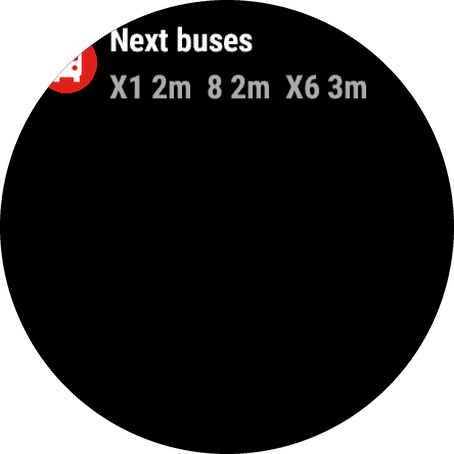
- At a fixed or pinned stop, a cancelled bus shows as
48 CANC. - While you are watching a bus, it shows that bus (for example "12m +3m set off 5m 4 stops"),
CANCELLED, or "Gone - open to refresh". - In the evening, away from home, it can read
Home - set off · m3 7m: set-off times for the way home. See below. - "Open to refresh" means the glance has no recent data. Open the widget once.
Complication
Called "Next departure": the route and its clock time (the watched bus while you are watching, the first way-home option in the evening). It works on 69 of the 112 supported watches (Connect IQ 4.2 and newer). Which watch face shows it is chosen in that watch face's own settings, not in Departures.
How the background refresh works
When the widget is closed, the watch runs a short timed job to keep the glance and complication fresh. It needs your phone connected. Garmin does not allow it to run more often than every 5 minutes, so that is the fastest it can ever be.
How often it runs
- Every 5 minutes while you are watching a bus, or inside a weekday commute window (7 to 9 and 16 to 18 by default, the Commute boost setting).
- Otherwise the Update speed: Fast every 5 minutes, Normal every 10, Battery saver every 30, or Only when open (never).
- It never sleeps past the start of the next commute window, so the boost begins on time.
- Not at night (from 0.0.13): between 23:00 and 06:00 it pauses until morning, unless you are watching a bus or a commute window starts. Change the hours, or set both the same to keep updating all night, in Advanced settings on the phone.
What it fetches
The first one that applies wins:
- The bus you are watching.
- The way home, if it is the evening window (15:00 to 23:00 by default), you are more than 1.5 km from home and you have no fixed stop.
- A stop you paged to in the widget, if that was within the last 30 minutes and within 250 m of you.
- A favourite within 400 m.
- Your fixed stop.
- The nearest stops.
Notifications
With Notify problems on, and a fixed or pinned stop being watched, a new cancellation in the next 90 minutes, or a disruption on one of that stop's lines, makes the watch buzz and show the message (such as "48 at 17:04 cancelled") with an Open prompt. Each problem is reported once. Watched-bus messages are described above.
Settings
The same settings can be changed in three places. They set the same values, so use whichever is handiest.
- The Garmin Connect app (phone): open the app's settings page. This is for installs from the store or a beta, not for sideloaded
.prgfiles. - The watch: menu, then Settings. It covers the main ones, not Advanced.
- The website: on My watch after linking. They reach the watch on its next refresh.
Main settings
| Setting | What it does |
|---|---|
| Location from | GPS (default), Weather location, or Postcode / place below. |
| Postcode or place | Used when the location source is the postcode, for example M1 1AD or Leeds station. |
| Fixed stop code | The 6-letter code from the stop finder. The glance, background and widget always show that stop. |
| Use the fixed stop | Switch the fixed stop off or on without removing it. On the watch it is Fixed stop. |
| Home postcode (optional) | Overrides Set home here on the watch. |
| Show buses and coaches, trams, metro / underground, trains | Switch each kind of transport on or off. Ferries are always shown. At least one stays on. |
| Update speed | Fast (open: 15 s, glance 5 min), Normal (30 s, 10 min), Battery saver (60 s, 30 min), Only when open (30 s, no background). The default is Normal. On the watch the same setting is called Background updates. |
| Buzz when it's time to set off | Buzz when the route detail reaches "Set off now". On by default. On the watch: Buzz to set off. |
| Notify me when a bus at my fixed stop is cancelled or disrupted | The background buzz described above. On by default. On the watch: Notify problems. |
| Commute boost | Refresh every 5 minutes inside the commute windows on weekdays. On by default. |
| Morning commute from / until, Evening commute from / until | The commute windows as hours on the 24 hour clock. Defaults 7 to 9 and 16 to 18. |
| Evenings: show "get me home" in the glance when away from home | On by default. On the watch: Evening: home in glance. |
While the widget is open, GPS follows you and the nearby routes are re-checked after about 60 m of movement. GPS is off once you leave the widget.
Advanced (phone settings only)
Added in 0.0.10, in the Advanced group of the Garmin Connect settings. The defaults suit most people. They are not in the watch menu.
| Setting | Default | What it changes |
|---|---|---|
| Walking pace | Normal, 80 m a minute | Slow is 60, Brisk is 100. Affects every set-off time and the green, orange and red colours. |
| Evening "get me home" glance from / until | 15 to 23 | The hours when the glance can show the way home. |
| No background updates at night from / until | 23 to 6 | From 0.0.13: the hours when the glance pauses (saves battery). Set both the same to update all night. |
| "Away from home" means more than (metres) | 1500 | How far from home counts as away. |
| A favourite takes over within (metres) | 400 | How close you must be to a favourite for it to take over. |
| Notify about cancellations up to (minutes ahead) | 90 | How far ahead cancellations are reported. |
| Watched bus: tell me when it moves by (minutes) | 5 | How big a change in the watched bus's time triggers a message. |
Linking to the website
The My watch page lets you set a fixed stop, home, up to six favourites (with an optional route list such as 48,49,M3) and the main settings on a proper keyboard. It also lists open disruption notices at those stops.
- On the watch: hold Up (or press Menu), choose Link to website. It shows a 6-character code that lasts 15 minutes.
- Type the code into My watch. That opens a private page for your watch. Bookmark it: the link is your key, and there is no account.
- Change things and press Save to watch. The watch picks them up the next time it refreshes.
Settings saved on the website replace the watch's own fixed stop, home and favourites. A fixed stop code typed into the Garmin Connect settings still takes priority, and the watch's Fixed stop switch turns either off. Linking needs app version 0.0.5 or newer, and the website's watch settings need 0.0.9 or newer.
Coverage
Live means the app has real-time predictions for the service. Timetable means it shows scheduled times only, without a green dot.
| Where | What you get |
|---|---|
| London | Live (Transport for London). Stops away, line status, Tube and DLR arrivals. |
| England (outside London) | Live estimates for buses from the Bus Open Data Service, with stops away, late or early, cancellations and disruption notices from the operators. These are our own estimates from bus positions, so they can be a little off. |
| Scotland and Wales | Timetable only for now. Live times are waiting on a national data feed. |
| Santander | Live city buses. |
| Vienna | Live U-Bahn, tram and bus. |
| Hong Kong | Live KMB buses. |
| Singapore | Live buses with crowding and stops away. |
| Toronto | Live TTC buses and streetcars. The subway comes from the general feed (Transitous). |
| Lisbon area | Live Carris Metropolitana buses in the 18 municipalities around Lisbon, where the buses are tracked. Carris buses and trams inside Lisbon city are not covered live. |
| Barcelona | Live TMB buses. Metro, Rodalies and other operators come from the general feed. |
| Trains in England, Scotland and Wales | Live boards from National Rail's Darwin system at every station: expected times, platform numbers next to the destination ("Cardiff Central P15"), operator badges, cancellations and delay reasons. |
| Northern Ireland | Live Metro, Glider, Ulsterbus and Goldline buses and NI Railways from Translink's own journey-planner data (Transport Information supplied by Translink Opendata API). |
| Sydney and New South Wales | Live buses, Sydney Trains, NSW Trains, Metro, light rail and ferries from Transport for NSW's real-time feeds. |
| Auckland | Auckland Transport's real-time feed for buses, trains and ferries. |
| Paris and Île-de-France | Live metro, RER, trams and buses; outer-suburb lines filled in from Île-de-France Mobilités' own PRIM service. |
| New York | Live subway (all lines) and buses from the MTA's own feeds. |
| San Francisco | Live Muni buses, trams and cable cars via 511 SF Bay. |
| Rome | Live ATAC buses and trams where the vehicle is tracked. |
| Helsinki | HSL's real-time feed (CC BY 4.0). |
| Madrid | Live EMT city buses, with EMT's own incident notices as alerts. Interurban buses, Metro and Cercanías come from the general feed (Cercanías are live). |
| Sweden | Live departures for all operators and modes, where the operator publishes them (Trafiklab). |
| Brussels | Live STIB metro, tram and bus. |
| Vancouver | Live buses. SkyTrain has no live times. |
| Melbourne and Victoria | Live metro trains, trams, buses and V/Line trains (Transport Victoria's real-time feeds). |
| Flanders | Live De Lijn buses and trams, including De Lijn services in Brussels (bron: De Lijn). |
| Chicago | Live CTA buses and 'L' trains from CTA Bus Tracker and Train Tracker. Metra and Pace come from the general feed. |
| Everywhere else | Timetables, plus live times and cancellations where the operator publishes them, through Transitous, which covers over 650 networks in 35 or more countries. How much is live varies a lot by city. |
If a place shows no departures, or the times look wrong, please tell us the stop name and the time.
Questions and problems
Does it cost anything?
No. Departures is free, with no adverts, no paid features and no account. Running the server and the data feeds behind it does cost money, so if you find it useful, a donation towards the running costs is appreciated, but never needed. Much of the timetable data comes from Transitous, a free community-run service, which you can support directly too.
The widget says "Waiting for GPS"
The watch has not got a location yet. Give it a minute, ideally outdoors. You can avoid GPS by choosing Weather location or a postcode in Settings.
"Phone not connected"
Departures gets its data through your phone. Check the watch is connected in the Garmin Connect app, then choose Refresh now from the menu.
"Timed out"
The phone connection or the server was too slow. Try Refresh now, or move somewhere with better signal.
"Bad reply - VPN/firewall?"
The hosting firewall sometimes shows a challenge page to phones that use a VPN, and the Garmin app cannot answer it. Turn the VPN off, or exclude Garmin Connect from it, then refresh.
"Stop code not found"
The 6-letter code is not recognised. Check it on the stop finder (it shows the code for each stop) and re-enter it.
The glance says "Open to refresh"
The glance has no recent data of its own, for example before the first background run, or after the bus you were watching has gone. Open the widget once and it fills in. Also check Update speed is not "Only when open".
Why can't the background refresh faster than every 5 minutes?
That is Garmin's minimum for background jobs on every watch. Even with Fast speed or the commute boost it is 5 minutes. Open the widget to get live times at any moment: it refreshes every 15 to 60 seconds while open.
I sideloaded a .prg file and there is no settings page
Only store or beta installs get the settings page in Garmin Connect. Use the watch's own Settings, or the website, instead.
The glance shows the way home but I wanted my stop, or the other way round
The evening get-me-home glance only appears when you have no fixed stop, you are more than 1.5 km from home and it is inside the evening window. Switch it off with Evening: home in glance if you do not want it. See What it fetches for the full order.
Do I need an account? What do you store?
No account. The app makes up an anonymous id (not your Garmin id). The server keeps the settings you save on the website and a 30-day log of requests, with your position rounded to about a kilometre. No names or emails.
Which watches work?
112 Garmin watches with Connect IQ 3.2 or newer that can run a widget or glance. The complication needs Connect IQ 4.2 or newer (69 of them).